
Table of Contents
- CLion Installation
- Setup Windows Subsystem for Linux (WSL)
- Package installation
- Configure CLion
- Setup Valgrind on CLion
- Redirect Input from file on CLion
- Setup WSL Terminal on CLion
- Setup WSL Xserver [Optional]
- Troubleshooting GUI errors
CLion Installation
Create an educational account using your university email:
https://www.jetbrains.com/shop/eform/students
Download, install and login into CLion.
Setup Windows Subsystem for Linux (WSL)
⚠️ IMPORTANT - If you have Windows 11 installed you don’t need to follow these steps below nor the installation of an X-Server. Running wsl —install in a Powershell terminal and setting up an UNIX username like the steps below is sufficient to have a working environment.
Open Windows Powershell in Admin mode by using Win+X shortcut and use the following command (In this guide we will install WSL version 1, this saves us a lot of troubleshooting. Feel free to try version WSL 2 if you like it)
dism.exe /online /enable-feature /featurename:Microsoft-Windows-Subsystem-Linux /all /norestart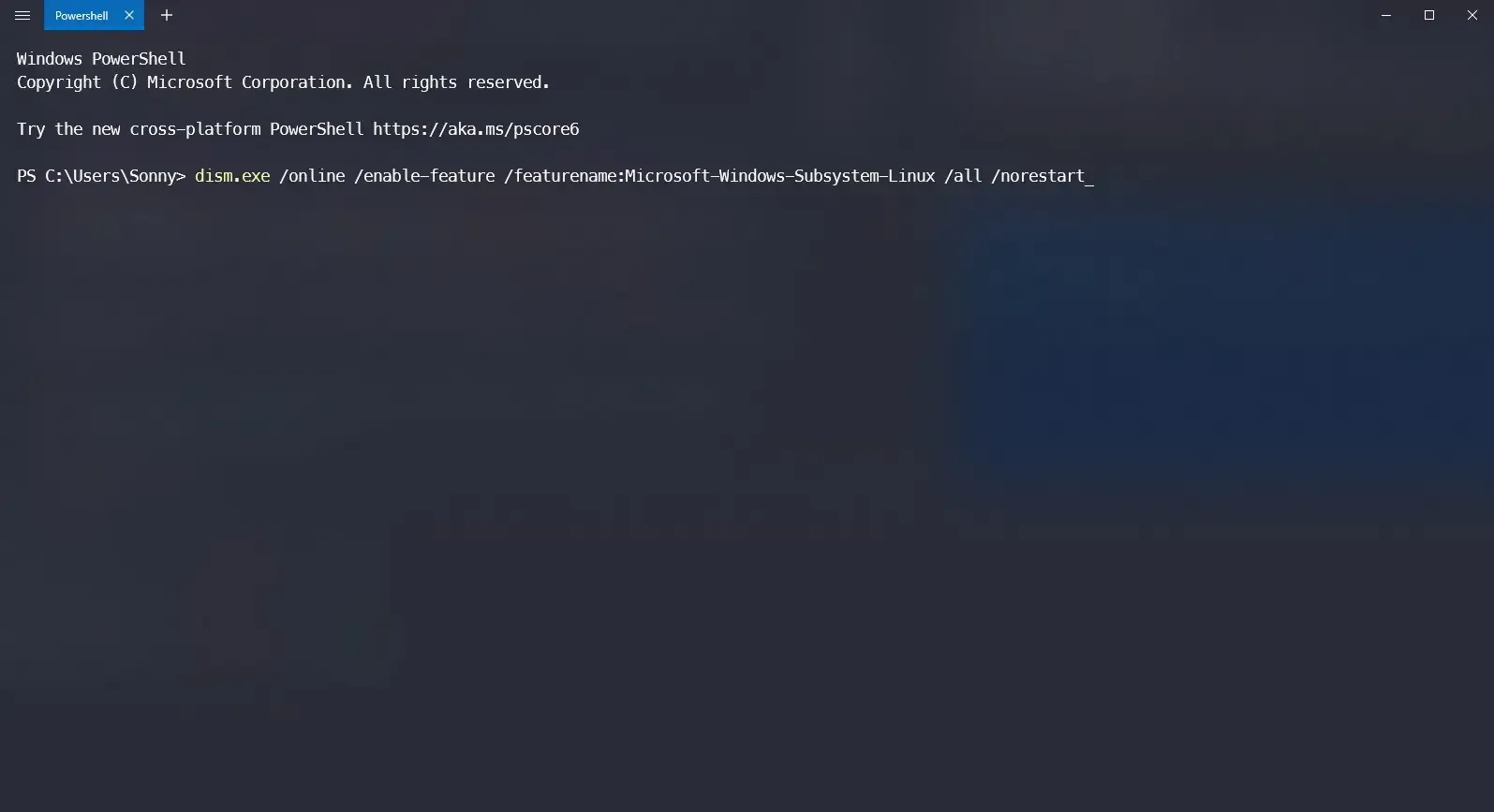
Reboot your system
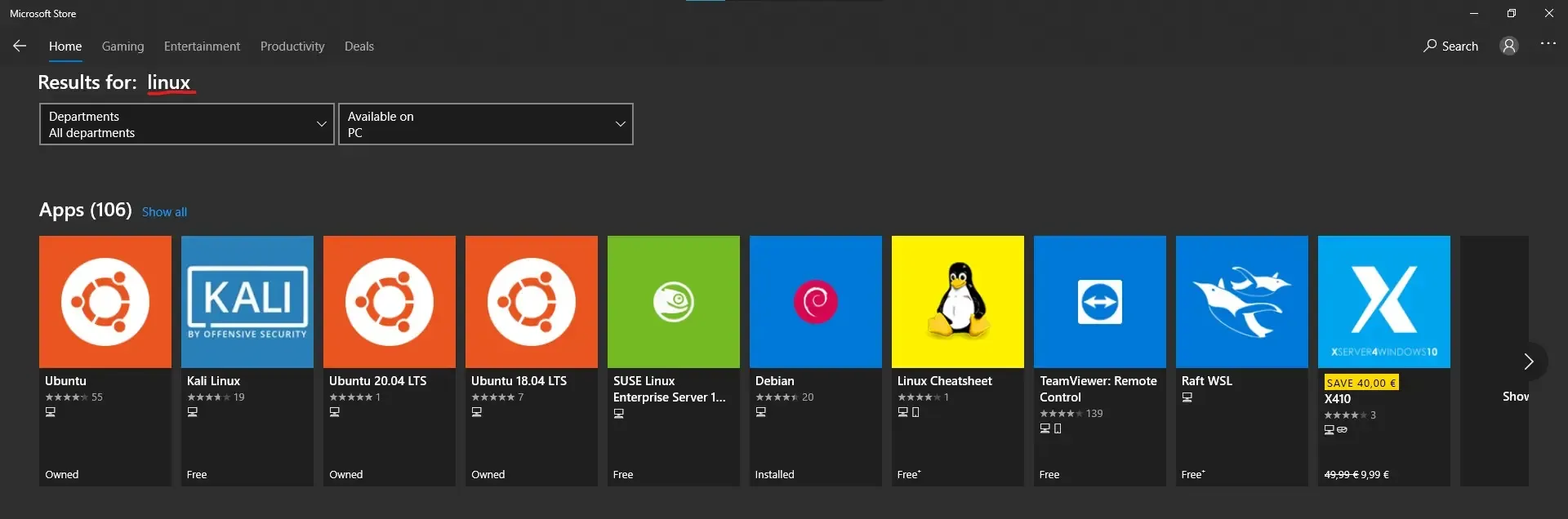
Choose your preferred distro (I suggest using Ubuntu because most of packages are updated and accessible, if you want a lightweight heavy distro use Debian) and download it from Microsoft Store.
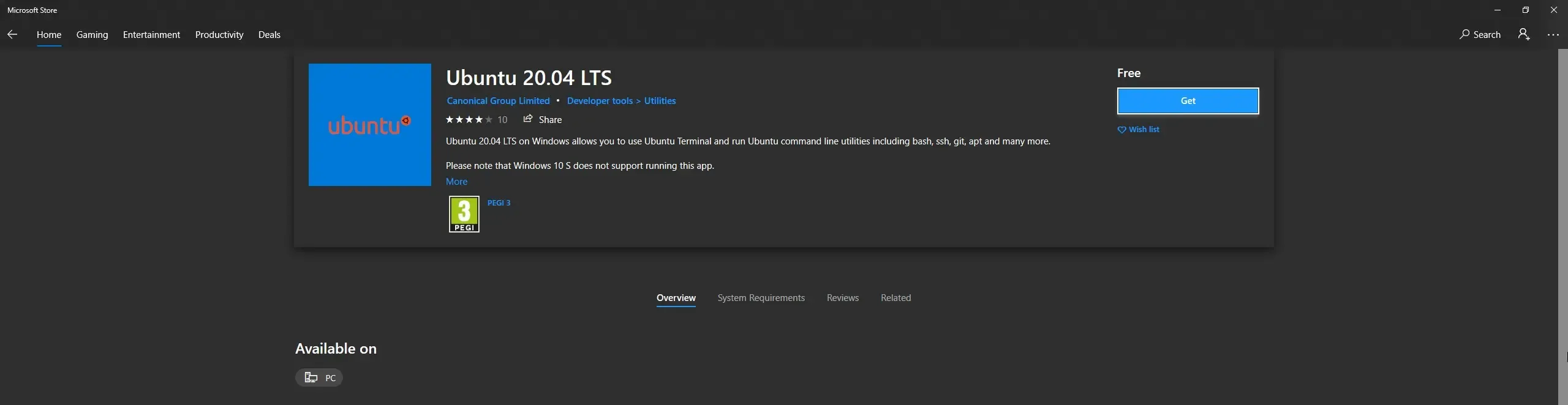
Once installed, open it by searching it in Start Menu.
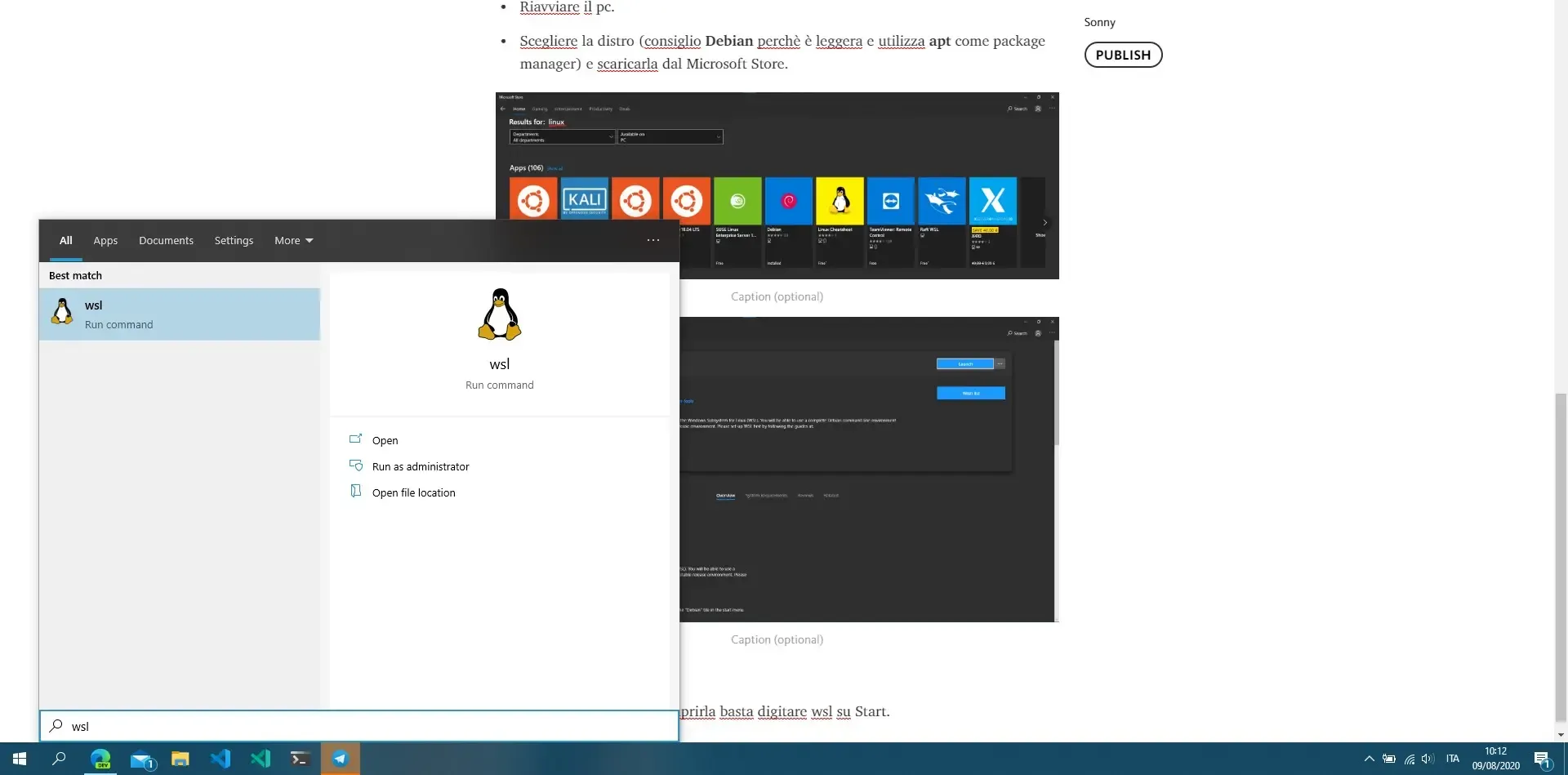
Create a UNIX user with a password (You need it later so choose one you can actually remember).

Update the distro with:
sudo apt update && sudo apt upgrade -yPackage installation
Install packages with this command:
sudo apt install -y build-essential cmake gdb valgrind wget kcachegrindConfigure CLion
Create a SSH profile with the following command (this assures that CLion connects to WSL):
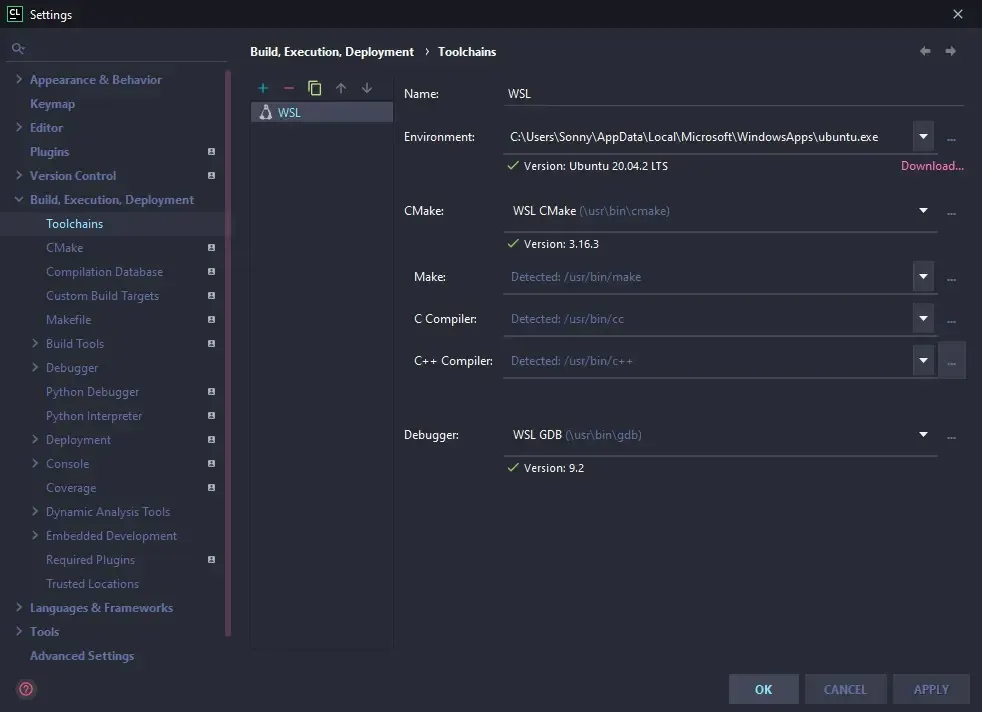
wget https://raw.githubusercontent.com/JetBrains/clion-wsl/master/ubuntu_setup_env.sh && bash ubuntu_setup_env.shOpen CLion, go to File>Settings>Build, Execution, Deployment>Toolchains, click on + and choose
WSL.
Version 2021 and newer
It should detect automatically your WSL distro and version like the following screenshot:
Version 2019
Go to credentials, open the menu and configure a new connection:
-
host: localhost,
-
username: WSL username previously created,
-
port: 2222,
-
authentication type: WSL password previously created.
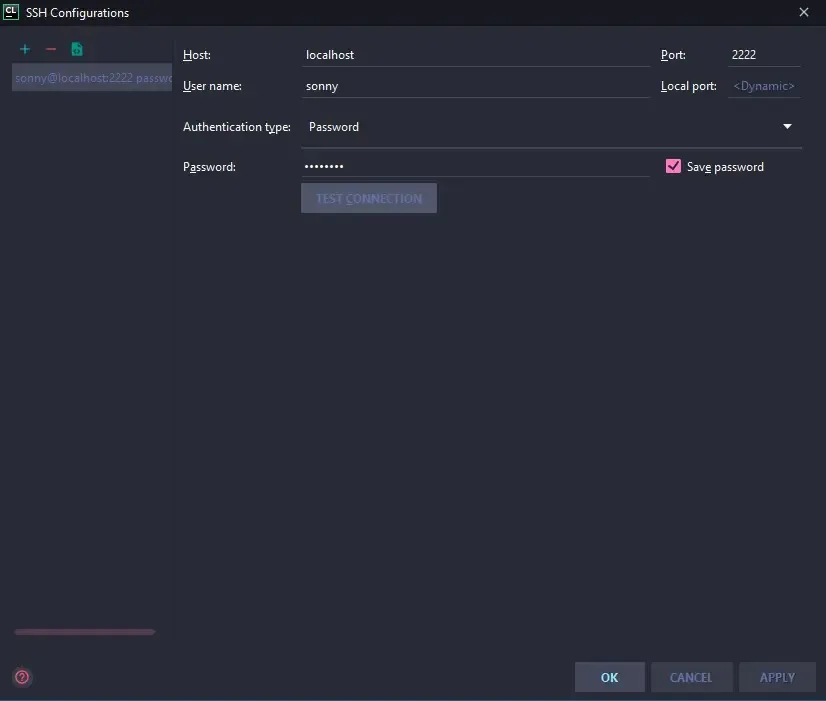
Test the connection with the related button.
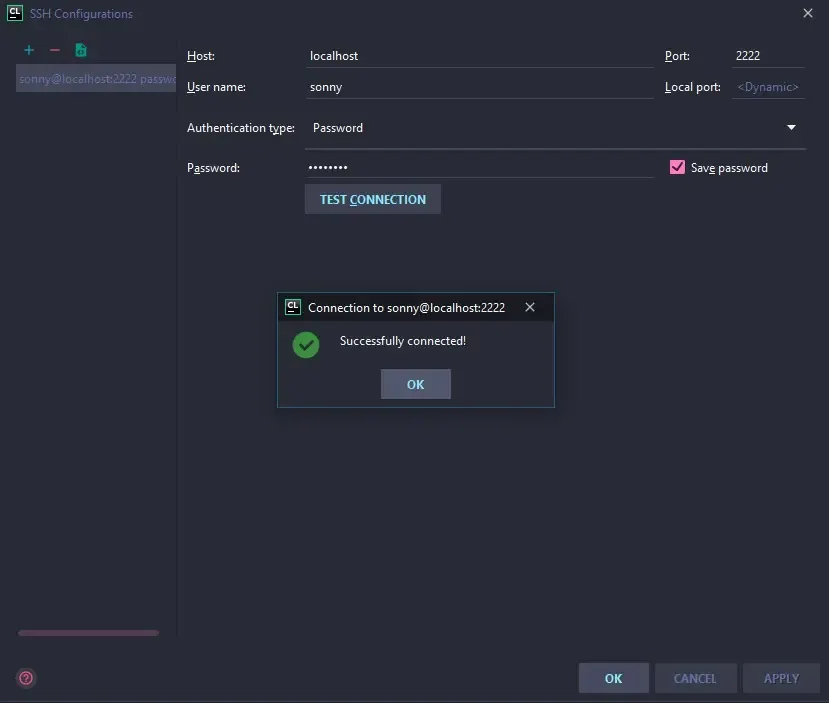
If CLion is connected correctly it should automatically detect all the paths, otherwise you can set
them manually (they are located under /usr/bin)

Setup Valgrind on CLion
Go to File>Settings, search for Valgrind, set valgrind path (/usr/bin/valgrind) and all its
arguments (view the FAQ guide).

Now you can run your program with Valgrind by clicking on the top right icon (I use Atom Material Icons plugin which I strongly recommend:
https://plugins.jetbrains.com/plugin/10044-atom-material-icons .

Redirect Input from file on CLion
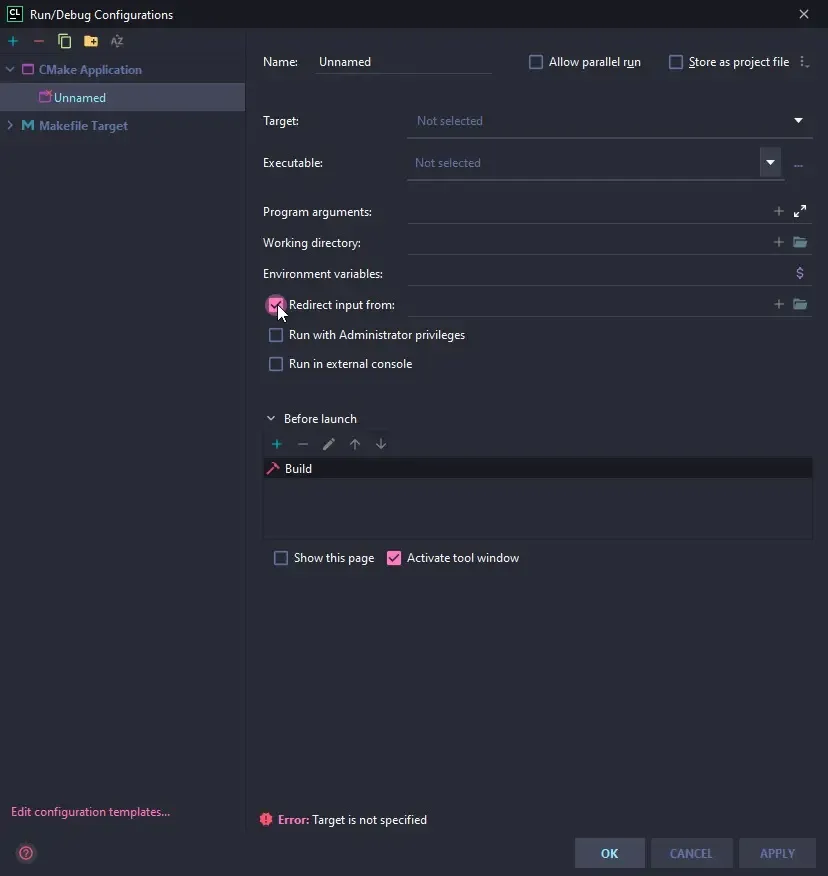
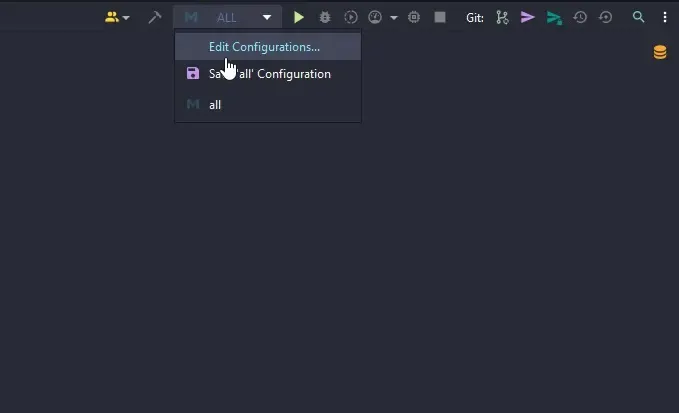
Under Edit Configurations inthe top right corner you can change to redirect the input from file
like the following images
Setup WSL Terminal on CLion
If you want to run CLI commands directly into the project directory you can use the built-in terminal in CLion.
Go to File>Seetings>Tools>Terminal, under Shell Path you should already see the WSL terminal
unless type the following :
wsl.exeor this if you have multiple distros installed:
wsl.exe --distribution <distroName>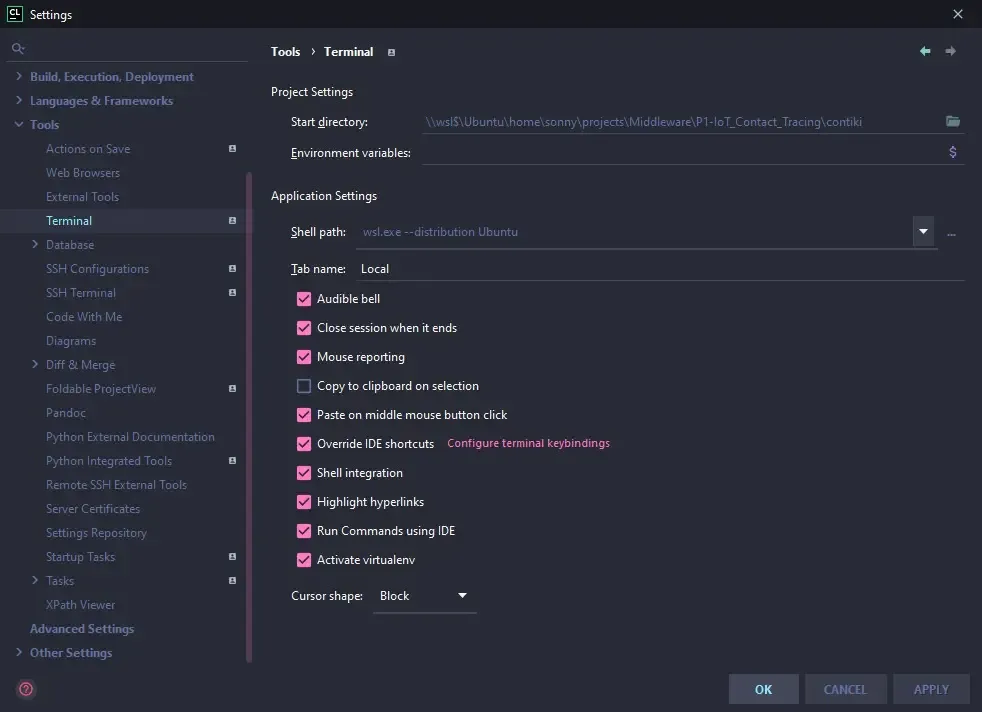
Setup WSL Xserver [Optional]
If you want to run kcachegrind, massif-visualizer or any Linux app with a GUI follow the next steps.
Open WSL, modify your .bashrc (nano ~/.bashrc) file and append this line at the end of the file:
export DISPLAY=:0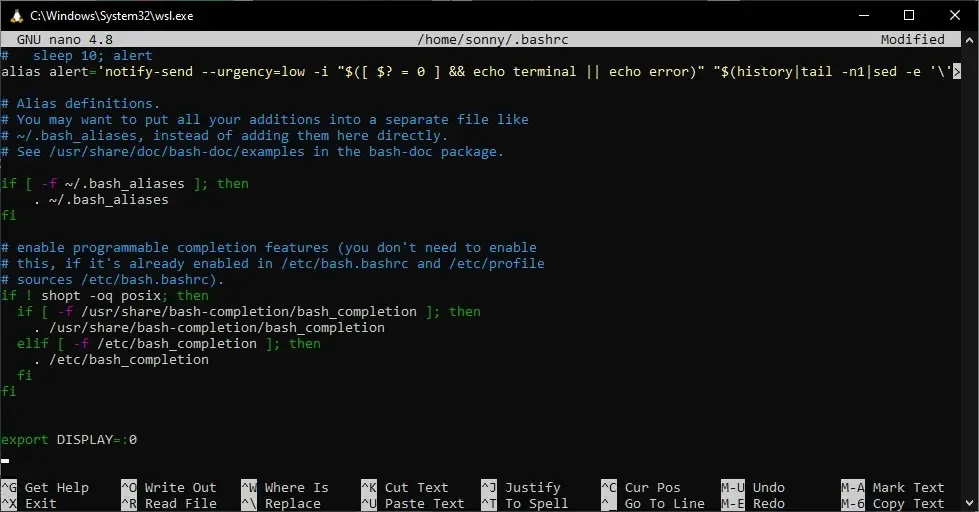
This will forward your Linux GUI to the Xserver (installed later).
Download and install VcXsrv Xserver (any other Xserver is fine, I just prefer this one): https://sourceforge.net/projects/vcxsrv/files/latest/download
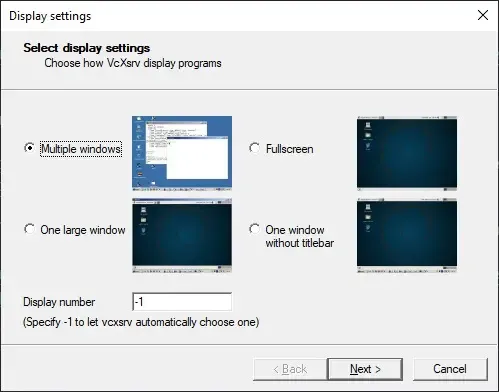
Launch it and choose Multiple windows (just continue, all the other options are not relevant for our purpose) and then press Finish.
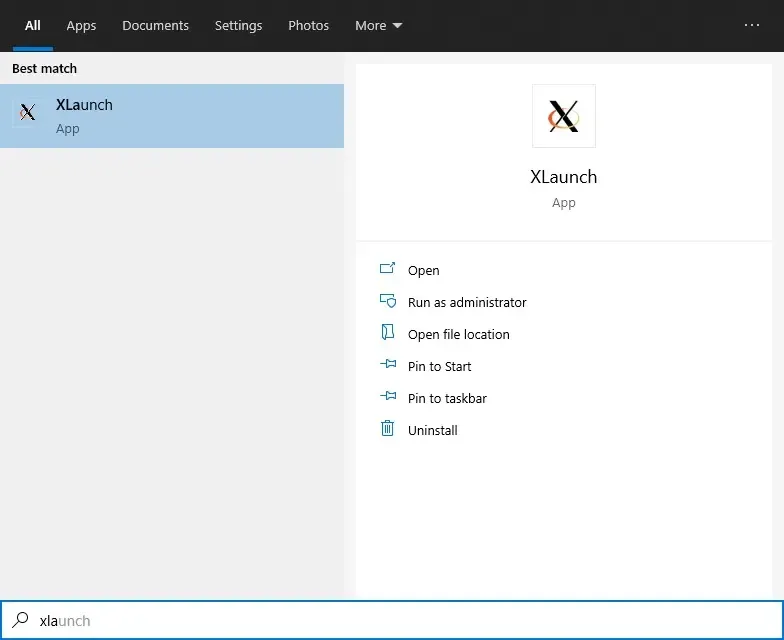
You should see in the bottom right on the taskbar the Xserver icon indicating it’s active.
NOTE
Remember to run XLaunch after every reboot to use it again
Troubleshooting GUI errors
cannot open shared object file: No such file or directory...
If you encounter the following error:
failed: libQt5Core.so.5: cannot open shared object file: No such file or directorywhile running kcachegrind, fix it by executing the following commands:
sudo apt install -y binutils
sudo strip --remove-section=.note.ABI-tag /usr/lib/x86_64-linux-gnu/libQt5Core.so.5
Could not load the Qt platform plugin "xcb" in ""...
If you encounter the following error:
qt.qpa.xcb: could not connect to display :0
qt.qpa.plugin: Could not load the Qt platform plugin "xcb" in "" even though it was found.
This application failed to start because no Qt platform plugin could be initialized. Reinstalling the application may fix this problem.
Congratulations 🎉 you have installed WSL2! (naughty user, you have not followed my guide 😠!).
Replace the previous export with:
export DISPLAY=$(route.exe print | grep 0.0.0.0 | head -1 | awk '{print $4}'):0.0If it does not work follow this guide (Firewall section only): :book:.